How to Install TrimixIPTV on Amazon Firestick 4K
Complete setup guide using the Downloader App. Get TrimixIPTV running on your Firestick in under 10 minutes.
What You'll Need
- Amazon Firestick 4K (or any Fire TV device)
- Active TrimixIPTV subscription (order on our Order page)
- Stable internet connection (10+ Mbps recommended for 4K)
- The Downloader app from the Amazon App Store
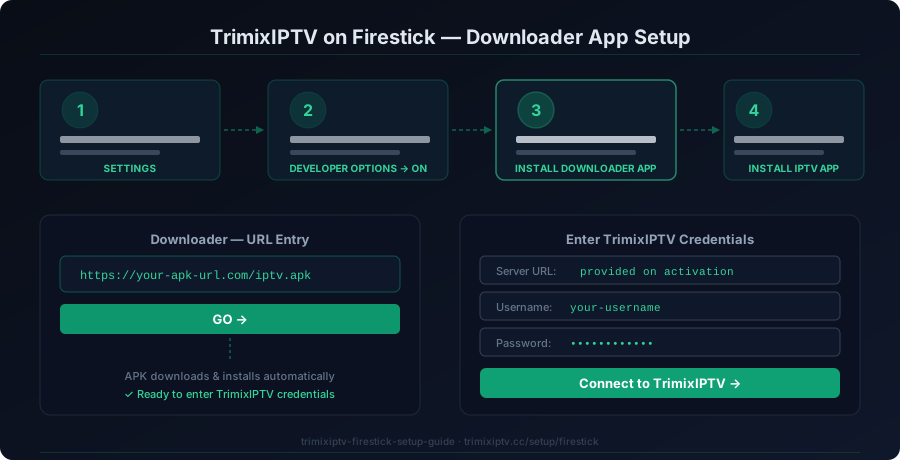
Step-by-Step Installation Guide
Enable Apps from Unknown Sources
On your Amazon Firestick, go to Settings → My Fire TV → Developer Options. Toggle "Apps from Unknown Sources" to ON. This allows sideloading third-party IPTV apps.
Install the Downloader App
Return to the Firestick home screen. In the search bar, type "Downloader" and select the Downloader app by AFTVnews. Click "Download" and install it.
Open Downloader and Enter the IPTV App URL
Launch the Downloader app. In the URL field, enter the IPTV Smarters or TiviMate APK download link provided by TrimixIPTV support. Click "Go" to download the APK.
Install the IPTV App
Once the APK downloads, click "Install" to install the IPTV player app on your Firestick. When prompted, tap "Done" (not Open) so you can configure it.
Enter Your TrimixIPTV Credentials
Open the installed IPTV app. Navigate to "Add Playlist" or "Xtream Codes API". Enter your TrimixIPTV username, password, and server URL provided after your subscription is confirmed.
Load Your Channels and Enjoy
The app will load your 25,000+ TrimixIPTV channels and EPG guide. Go to "Live TV" and enjoy! We recommend setting up the EPG for the best experience.
Pro Tip: Use TiviMate for the Best Experience
For the best Firestick IPTV experience, we recommend using TiviMate Premium as your IPTV player. It offers a beautiful EPG interface, multi-stream support, and catch-up TV. See our TiviMate setup guide →