How to Setup Trimix IPTV on Apple TV 4K & iPhone
Take advantage of Apple TV 4K's A15 Bionic processor, gigabit ethernet, and native HDR color tone mapping for fluid 4K sports streaming.
Quick Summary (Inverted Pyramid Answer)
- Step 1: Install Smarters Player Lite (Free on App Store) or IPTVX (Apple-native Netflix style UI).
- Step 2: Choose Xtream Codes login, input your Trimix IPTV credentials, and allow iCloud playlist sync.
- Step 3: Configure Apple native AVPlayer in settings for zero-buffer 60fps sports and Dolby 5.1 surround sound.
1. Top IPTV Players for Apple Ecosystem
Smarters Player Lite
Completely free in App Store. Reliable Xtream Codes support for both tvOS and iOS.
IPTVX (tvOS Flagship)
Gorgeous Apple TV interface mimicking Apple TV+ and Netflix. iCloud sync and Top Shelf integration.
GSE Smart IPTV
Power-user player with extensive subtitle customization and custom stream buffering tools.
2. Smarters Player Lite Configuration
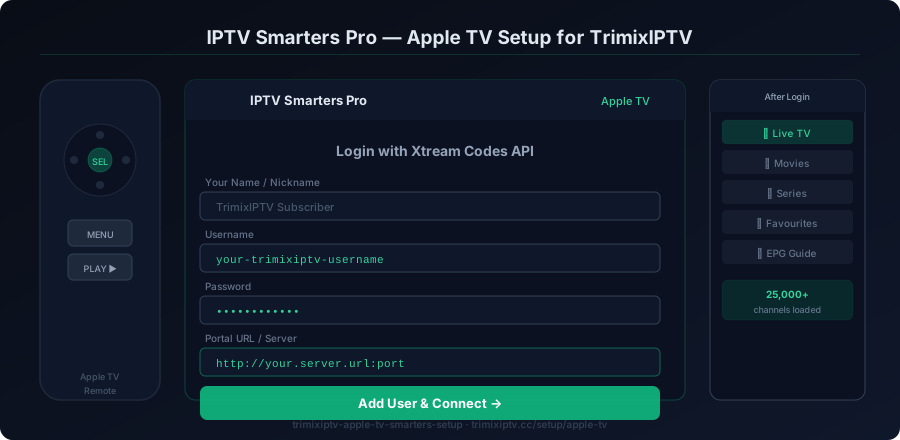
Download Smarters Player Lite from the iOS or tvOS App Store. Choose Login with Xtream Codes API:
http://portal.trimixiptv.cc:80803. IPTVX Setup (Premium Apple TV Experience)
If you prefer an aesthetic Apple TV experience with trailer previews and family profiles, IPTVX is ideal:
- Open IPTVX on your Apple TV 4K.
- Go to Playlists > Add Playlist > Select Xtream API.
- Input your Trimix IPTV credentials and name the service "Trimix IPTV".
- Enable Automatic EPG Sync and VOD Poster Art.
Test Trimix IPTV on Your Apple TV / iOS
Verify 4K sports stability, EPG speed, and zero-buffering anti-freeze technology with a risk-free 24-hour test pass.
4. Native AVPlayer & Match Dynamic Range Settings
Configure your Apple TV 4K system settings for judder-free sports streaming:
1. Apple TV Video Settings: Go to tvOS Settings > Video and Audio > Match Content > Turn both Match Dynamic Range and Match Frame Rate to ON.
2. Audio Format: Set to Auto (Dolby Atmos / 5.1 Uncompressed LPCM) for high-fidelity arena and stadium acoustics.